
Note: This article only applies to customers using our Managed Wordpress Backups service
Restoring a backup couldn't be easier. Follow the steps below to restore one of your offsite backups. Please remember that restoring a backup will overwrite the content on your existing website so it is imperative that you take a manual backup of your website before restoring a backup.
1. Log into your Wordpress website and click on the Backuply link in the left side navigation bar. This will take you to the Backuply dashboard.
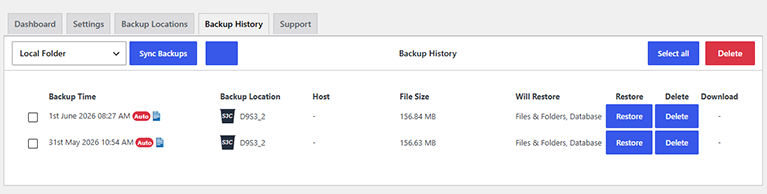
2. Click on the "Backup history" tab and you will see a list of all your available backups. Click on the "Restore" button next to the backup you would like to restore and the backup restoration will begin.
As this service is fully managed we can also perform the restore for you. Simply submit a ticket to the Managed Wordpress Backups support department and let us know which of your backups you would like us to restore for you.